Facebook: Changes Coming January 1, 2015

Guess what? The Facebook gods are messing with your Facebook universe again.FB logo

In my never-to-be-humble opinion, some of the changes are good, some are not, and some only a few people will care about (a.k.a. developers and programmers).


The Good Stuff:

Privacy Check-Up:

Dear Facebook, Thank you. Thank you. Thank you.

Facebook is adding prompts to help you do just what I taught you in Facebook: Little Known Tips and Tricks, tips five through seven.

Make sure to use this new feature. It’s a great privacy tool. If you want a sneak peek, go here.

“BUY” Button:

In some markets, Facebook is testing a “Buy” button so you can purchase items without leaving Facebook. I have no clue if you’re in a test market, but January 1 you’ll know.

One-time Advertising Control:

You’ll be able to set up advertising options once and it will cover all your devices – mobile or otherwise. Prior to this, you had to set your preferences on each device.


 Neutral Stuff:

mapLocation Information:

Facebook loves to ask where you are and what you’re doing. Now when you tell them, you’ll be prompted with things you might like to do, places you’ll like to eat, and Facebook friends in the area. This might end up being good, but I’m still evaluating the needs for this kind of privacy invasion.

Facebook Family of Companies and Apps:

Facebook has expanded its reach over the years. New terms in January will explain what, and who, their family of companies are plus apps you can use to interact.

Developer Updates:

If you’re a developer, you must comply with Facebook’s Platform Policy. All your special provisions will be merged and linked to an external page. You can find more info here.


The Not-So-Good Stuff:frown face yellow coffee mug

Ad Cookies:

Facebook is jumping on the advertising bandwagon by adding to their cookies. I think you’ll see more ads on your Facebook pages.

“We offer a range of products and features that involve the use of these technologies to reach you based on your activity on and off our Services.”

 Advertising:

But the ads you see won’t be free ones.

“Now we’re bringing new volume and content controls for promotional posts, so people see more of what they want from Pages.”

That we understand and that’s good, but the next part…

“According to people we surveyed, there are some consistent traits that make organic posts feel too promotional:
1 Posts that solely push people to buy a product or install an app
2.Posts that push people to enter promotions and sweepstakes with no real  context
3.Posts that reuse the exact same content from ads”
Here’s what Facebook has to say about organic posts.

“Organic reach refers to how many people you can reach for free on Facebook by posting to your Page.”

Previously, creating and using a Facebook page for only advertising was a no-no. Now, they’ve narrowed it to individual posts.

What does this mean for home-based businesses,  book giveaways from authors, or using canned marketing packages?  I understand it to mean you can’t. I’m not sure of the consequences if you do. I would guess if someone turns in your post to the Facebook police, they’ll take it down.

An example of an organic post per Facebook is shown below. I certainly hope they don’t consider every post from bit.ly an ad. Some of the best recipes found on Facebook are there.
organic post1

What can you do to advertise your product on Facebook? You can pay.  Facebook says they are only trying to keep their subscribers happy and not make money. You decide.

For more information, go to Facebook’s explanation page: Organic Reach on Facebook. If you’re a business client of Facebook, you can find added info here.

 For updates to Facebook Terms and Privacy Policies, click here.

Enjoy the hustle and bustle of this magical season, have a great week, and thanks again for following Patti’s Pathways.


Related posts: Making Sense of Terms of Service


DISCLAIMER: Any and all ideas presented in this blog are solely my own unless otherwise noted. I experience troubles with technology just like any other person, and if I stumble upon a fix or suggestion I feel could benefit others I pass it along. At no time, have I suggested or implied that I hold any degrees or certificates related to computer repair.

I have during my career assembled parts into working computers; done troubleshooting on hardware and software; utilized a great many computer programs and software; designed and updated websites and blogs; as well as created brochures, banners, and flyers.


Have a Merry Techie Christmas!

Since this is a blog for everyday techies, girl angel
I knew you’d appreciate a post on 2014 gift gadgets.

Just so you know, I have zero technology budget other than my own pocketbook. It goes without saying I haven’t purchased most of these items. However, I’ve researched them, and used reviews from others. Psst. I get my best information that way.

Ho, Ho, Ho. Let’s go!


Let’s face it. If you have an unlimited bank account, your gifts are going to be more spectacular than the average joe. It’s sad, but true.

I’ve tried to find high-end and lower-end gizmos so everyone is happy.

The 3D PrinterXYZ Printing daVinci 3D Printers

Remember the 3D printer? It’s come a long way, baby.

Today’s printer is not only affordable — not the $20,000 of the originals — but is being used for making cool stuff like food-grade art, ceramic pots, animal prosthetics, and titanium replacement bones. Who knew, right?

Believe it or not, 3D printers are selling for as low as $600.  A decent example is XYZprinting’s daVinci 2.0 3D Printer. The reviews are good for this little unit. It’s size is 5.9″ x 7.8″ x 7.8″.Replicator Mini hero-shark

A higher-end mini unit being touted by techie magazines is made by Makerbot, the Replicator Mini. It sells for just under $1400. Dimensions are 3.9 x 3.9 x 4.7 inches. See, they weren’t lying about being mini.

The Replicator Mini’s big daddy weighs in at 35 pounds and measures 20.8 x 16.2 x 17.4 inches. For each inch you pay more. Makerbot’s Desktop Replicator has a price tag to go with its size: $2750.

Reviews for XYZprinting’s 3D printer are very good. Makerbot’s reviews vary. If you’re going to spring for one of these, do your homework.


 Smartwatches

Did you know James Bond’s watch was destined to become a reality? It is. But the new smartwatches don’t allow you to remotely ignite torpedoes…or do they?


What exactly is a Smartwatch? It’s a wearable wrist device that keeps a near-constant connection with your mobile device, usually a smartphone.

Smartwatches allows you to receive notifications of text messages, phone calls, or instant messages. It also tells you if you’ve gotten any social media updates. Those are the — um, how can I put this kindly — non-life-or-death uses,

But smartwatches do have some truly great features. You can download apps to track fitness (e.g. total steps taken, calories burned, heart rate, etc.), GPS navigation, weather updates, daily planner activities, control the music or camera on your phone, and more.


With so many styles — everything from the futuristic looking LG G Watch RiWatch to LG’s G Watch R whose best-selling point is its plain watch face — everyone should be able to find one to their taste.

Prices? Watches cost between $150 and $400, pre-Black Friday incentives.

Now for the bad news. This holiday season is won’t see the iWatch. You’ll have to wait until early 2015. Maybe you could ask for an Easter iWatchpresent instead?

From the looks of it, the iWatch will be worth the wait. It should be priced around $350.

And ladies, soon you’ll be able to buy designer bracelets with smartphone capabilities. It’s not expected for this holiday season. Let’s all say “aw” together.


Fitness Trackersfitness tracker

If you don’t really want all the bells and whistles of a smartwatch, but are totally in love with its fitness features, you can opt out and buy a fitness tracker. They come in a variety of shapes and sizes and range between $50 and $150. Some are compatible with mobile devices while some even tell time. Oh, did I mention there are also fitness trackers for Fido?


golf gpsGolf GPS

A few special individuals in my extended family are golf…um, connoisseurs. No, I didn’t even think “nuts”.

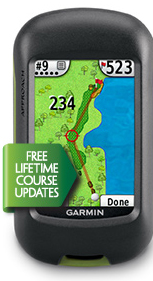
I’m sure they already know about this cool gadget, but I’ll Garmin golf wristwatchmention it for those who don’t. Garmin makes golf GPS. It tells precise distances to greens, layups and doglegs. Some models will help you adjust your shot for uphill or downhill.

Did I mention it also comes in a wristwatch?

These will set you back $200 to $400. Golf isn’t a game for lightweights.


UV Tracker

Being a redhead, UV exposure is important to me. It’s also a hot topic now we’re learning the importance of Vitamin D in calcium absorption, against fighting arthritis UV Trackersand cancer, plus too many more health benefits to list.

Enter the UV Tracker. There are several different kinds on the market. Some are sold by independent distributors and some from places like Amazon. They generally cost $50-$100, but in my opinion are well worth it. Check ’em out.

FYI: a new Microsoft fitness band, a bit different from a fitness tracker, has a UV tracker in it already. Before you spring for a solitary UV tracker, make sure the fitness tracker you have or are considering doesn’t include one.


 Noise MachinesNoise machine 1

I’ll leave you with one last item that’s been around for a while, but is definitely under appreciated: the noise machine.

I actually use one and own a couple. I love it. Let’s just say sleeping where I live is a challenge, and this little gadget makes my dreams come true.

Walmart has them for $25 to $30. Check the baby section, that’s where they’re usually stocked. And yes, I sleep like a baby with mine most of the time.

Noises on them include thunderstorms, rain, summer nights, white noise and more. Some have timers, some connect to your mp3 player, and include lullabies. Others let you count lighted cartoon sheep on your ceiling. No, mine does not.

If you have a loved one who struggles to sleep, this could be their ticket to dreamland.


Don’t worry if none of the above ideas fit your budget or grab your interest.
There’s always the old gift stand-bySanta notebooks.

  • Cameras and camcorders
  • Bluetooth speakers and headphones
  • Netbooks and notebooks
  • Tablets and smartphones
  • HDTV’s and movies
  • Gaming consoles and games
  • Gaming mice and keyboards
  • FOR KIDS: Radio Shack has tons of cool electronic building kits.

Plus what techie wouldn’t love a:han solo carbonite shower curtain

  • Back to the Future Flux Capacitor USB car charger
  • DC Comics coffee mug
  • Sonic the Hedgehog sweater
  • Dr. Who converse tennies
  • Minecraft plushy
  • Han Solo in Carbonite shower curtain

WHA!!? Nobody in your family wants these? You live a sad, sad existence.


Anyway, I hope I’ve helped add a few cool techie ideas to your holiday shopping list. Best of luck on your Black Friday and Cyber Monday purchases.

Have a blessed holiday season, and thanks again for following Patti’s Pathways. 😀


DISCLAIMER: Any and all ideas presented in this blog are solely my own unless otherwise noted. I experience troubles with technology just like any other person, and if I stumble upon a fix or suggestion I feel could benefit others I pass it along. At no time, have I suggested or implied that I hold any degrees or certificates related to computer repair.

I have during my career assembled parts into working computers; done troubleshooting on hardware and software; utilized a great many computer programs and software; designed and updated websites and blogs; as well as created brochures, banners, and flyers.

Email: Turning off Auto-Complete

Sorry, my last blog wasn’t really as helpful as it could’ve been crocodile tearsregarding remembered email addresses. Okay, I’m crying crocodile tears; I’m not really sorry.

Why? Because the last blog is very helpful if you need to remove individual cookies to discipline a badly behaving website.

Today’s topic should be more helpful in getting rid of remembered email addresses. We’re going to talk about turning off the auto-complete function.


In any email program, before you’ll see the fruits of your disabling-auto-complete labor, you need to clean out the wrong or old saved addresses from the address database. That’s Step Number One.

After you’ve accomplished that (or before, just don’t forget to do it later), turning off auto-complete will keep those pesky erroneous addresses from sneaking into your email address list.

NOTE: This should work for any email program. I’m only listing a few of the most used: Gmail, Outlook, and Yahoo. If you don’t use one of these three, play with your email program settings until you find a box or radio button that automatically adds addresses to you contact list and uncheck it.

DISABLING AUTO-COMPLETE:

 In Gmail:

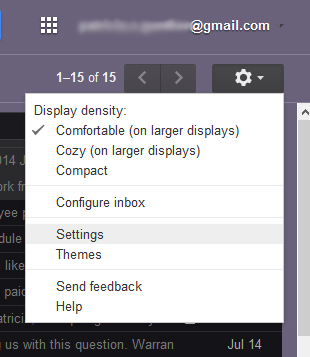
1) Click the gear icon in the upper right corner, and go to Settings,

Settings


2) Under the General tab scroll half to three-quarters of the way down to the area that says Create contacts for auto-complete: and choose the radio button I’ll add contacts myself.

turn off auto-complete


ADDING CONTACTS:

I know. I know. Now it’s work to add contacts.

Here’s a shortcut in GMAIL. Click on the dropdown menu arrow in the upper right of the email you want to save the address on, choose Add to my Contacts list.

add contact to list

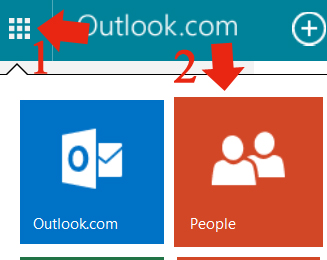
In OUTLOOK, you need to 1) click on the top left grid, choose 2) People

Outlook to People


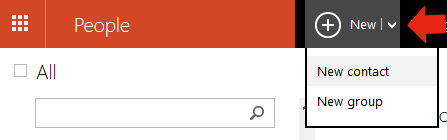
 In the dropdown menu by New, Add contact.

Outlook Add to Contacts

Let me know if you find a shorter way in Outlook.

YAHOO is the easiest to add contacts. Right click on any email in your Inbox list, and at the bottom of the dropdown menu it says Add Sender to Contact List.

Yahoo Add contacts


Disabling Auto-Complete In OUTLOOK

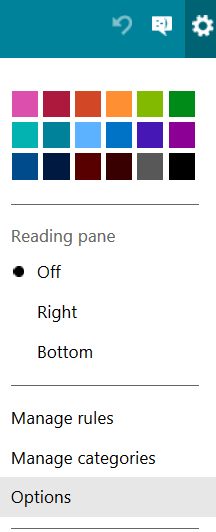
1) Open Settings (gear icon in top right corner), then click Options

Outlook


Click Advanced Privacy Settings

Outlook Advanced Privacy settings


One last step. Highlight the radio button that says Only suggest people in my contact list, and Save.

Suggest people on my list


 In YAHOO Mail

1) Upper right hand corner, click the gear icon, click Settings.

Yahoo mail

Select Writing Email, uncheck Automatically add new recipients to Contacts and Save.

Yahoo auto complete


Technically, you probably won’t have troubles with misspelled addresses popping up in your Yahoo To: field, but this will keep old addresses from sneaking into your contact list.


Hopefully, this trick makes emailing easier for you and will help clean up your addresses.

Have a great week-end, and thanks again for following Patti’s Pathways. 😀


DISCLAIMER: Any and all ideas presented in this blog are solely my own unless otherwise noted. I experience troubles with technology just like any other person, and if I stumble upon a fix or suggestion I feel could benefit others I pass it along. At no time, have I suggested or implied that I hold any degrees or certificates related to computer repair.

I have during my career assembled parts into working computers; done troubleshooting on hardware and software; utilized a great many computer programs and software; designed and updated websites and blogs; as well as created brochures, banners, and flyers.

Browsers: Deleting Individual Cookies

UPDATE: This post was originally titled Gmail: Getting Rid of Remembered Addresses.

I have a dear aunt who’s having trouble with Gmail logothose pesky remembered email addresses. Well, as luck would have it, we tried deleting individual cookies; it didn’t work. Psst. Check out my next blog for getting rid of remembered addresses.

There is a time and place for deleting individual cookies. If you have trouble with a cookie-driven site or a specific site within a browser, deleting individual cookies can help the offending site function better.

First, let’s talk about what cookies are and why we need them. You’ve heard of computer cookies? Excellent.


What’s a cookie? Well, it’s not the yummy kind you dunk into milk or cookies santaleave out for Santa.

Cookies are “directions” downloaded into your computer memory by websites. These directions include telling your web browser where you left off on a webpage, your login information, and what ads you’ll benefit from most. Yep, that’s why ads for something you just searched on Walmart’s website pop up when you’re on a completely unrelated site. I call that the cookie curse. The cookie blessing comes when you check your Facebook page without having to log in each time.

Why do we need them? Web servers/sites have no memory. To remember who we are and what we like, cookies are kept on our computers.


Now that you know what cookies do, let’s talk about clearing them. What? You’ve heard about clearing cookies, too. See, you’re computer savvy and you didn’t even know it.

Say a particular website is not cooperating — it’s freezing or lagging — it may help to clear cookies. The problem with clearing all cookies is that while this does what you want, it also gets rid of all things that aren’t a problem: logins, passwords, and other helpful data.

But never fear, there’s a way to delete specific cookies without deleting them all. Clearing cookies is done through your computer’s browser.

As far as browsers go, they’re like jeans — each person holding hand-jeanshas their favorite. Levi 501’s anyone?

The best-known browsers are Internet Explorer, Google Chrome, and Mozilla’s Firefox. If you have a Mac, you probably use Safari. Yes, there are other browsers available, such as Opera, but we’re talking about the most used today. No hate mail, please.

DELETING INDIVIDUAL COOKIES

I’ve listed the how-to’s by browser. You’re welcome to read them all or scroll down to your specific browser. I’m using Gmail as an example, but you can do this for any problem site: Washington Post, Ebay, Amazon, etc.

TIP: Don’t save passwords for sites with financial consequences (i.e. Ebay, Amazon, your bank, your broker, and many others). Yes, you have to enter it each time, but trust me, if your computer is ever hacked, you’ll be happy you didn’t. So when your browser asks if you want to save a password at a site that has information on your money, say “Never for this site”. See my post Creating the Safest Passwords for help.

FIREFOX:

Open Menu (top right lines icon), then 2) Options
Firefox Settings Options


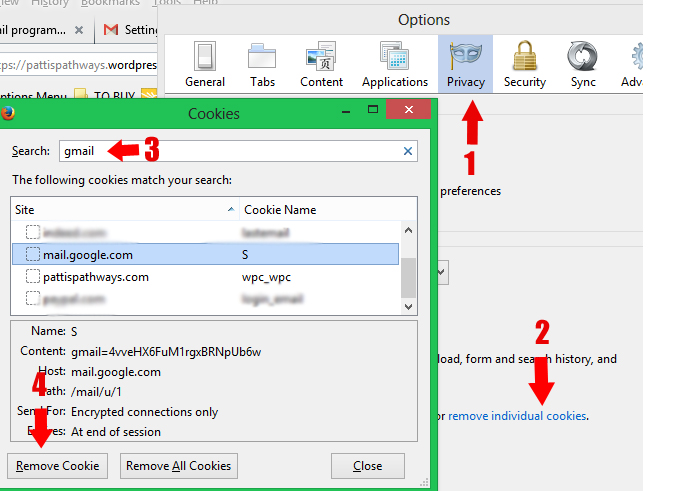
1) Click the Privacy tab, 2) click remove Individual cookies, 3) write “gmail” in the search box and highlight the first google mail cookie that appears, then 4) click Remove Cookie. The highlight will now be on the next cookie so if it’s gmail, delete it also. When you’re through with all the gmail cookies, close the window.
remove individual cookies-Firefox


CHROME:

With Chrome, you also have the three-line Menu icon in the top right. Click it then go to Settings towards the bottom of the dropdown menu.
Chrome Settings


Now you’ve opened a window that looks like the one below…kind of. You still need to scroll to the bottom and click on Show Advanced Settings. Don’t be afraid; you won’t mess anything up, it just makes the Settings list longer.

Scroll down to the Privacy area and click Content settings.Chrome Content Settings


If your next window doesn’t look like the one below, don’t worry. Just close it and try again. 😀

Click All cookies and site data…
Delete Cookies Chrome


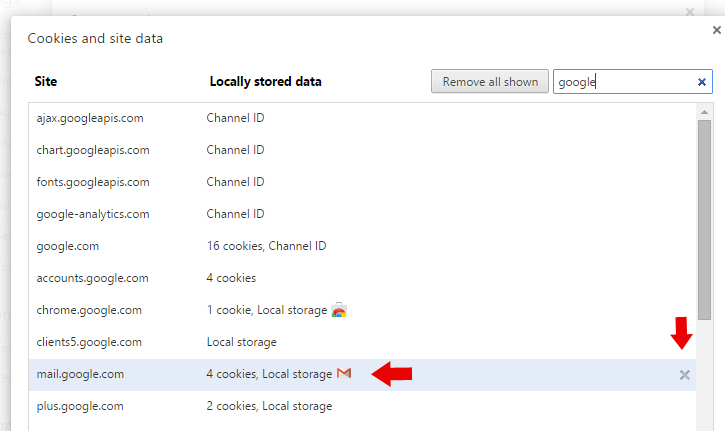
Type “google” in the search area and find mail.google.com. Press the “x” to delete only that cookie.
Chrome Search google-remove cookiesYou’re done.


INTERNET EXPLORER:

I must confess, I left IE until last of the PC browsers because I dreaded the research. To be honest, it’s the easiest and quickest of them all. Thanks, Microsoft.

Open the website you wish to delete cookies from; mine is Gmail. Then open Developers Tools (F12), click Cache, then Clear cookies for domain.
IE remove individual cookies


SAFARI for Mac

I don’t have a Mac, but since I mentioned it above, I researched how to remove individual cookies.

Open your Safari browser. In the top farthest left corner it says Safari. 1) Click Safari, 2) chose Preferences from the dropdown menu, and then — depending on your version — 3) click either Privacy or Security tab. 4) Click Details or Show Cookies. 5) Choose the website you wish to remove cookies from, and click 6) Remove. Click Done when you’re through.


Now you are a cookie aficionado. Well, maybe not quite, but you still know more than you did when you started reading this blog post.

A recommendation? Sure. I have a good one. I use a program called CCleaner by Piriform. It’s Free. It scans your computer for things you don’t need (cookies, surfing history,  temporary internet files, Windows log files, recycle bin contents, and more).  If your computer is slowing down, it could be due to miscellaneous saved stuff.

Now go have a cup of tea or something and relax. You’ve used a lot of gray matter today.

Have a great rest of the week, and thanks for following Patti’s Pathways. 😀


DISCLAIMER: Any and all ideas presented in this blog are solely my own unless otherwise noted. I experience troubles with technology just like any other person, and if I stumble upon a fix or suggestion I feel could benefit others I pass it along. At no time, have I suggested or implied that I hold any degrees or certificates related to computer repair.

I have during my career assembled parts into working computers; done troubleshooting on hardware and software; utilized a great many computer programs and software; designed and updated websites and blogs; as well as created brochures, banners, and flyers.


Help for Slow Websites on Firefox

I’ve many great tips to post so I’m prioritizing. Today I feel the need for readable websites as the most urgent. By “readable” I mean less lag and loading issues.

I like to view Daily Mail Online. Yeah, it’s tabloidesque, but America’s still a free country. This website (among others) lags badly. I suspect videos or ads are trying to load in the background.

I’ve remedied the jerky scrolling and the lag by enabling a Java Script blacklister add-on.


java-iconWhat’s Java Script? It’s a computer programming language that’s used by almost every website to make it interactive.

What’s a Java Script blacklister? It’s a mini-program that stops Java from running on selected websites. Most websites load and run just fine, but there are a selected few that do not. You add these to your blacklist.

What’s an add-on? Add-ons, also known as extensions or plug-ins, are mini-programs to enhance functionality. They’re usually independently created — someone had a problem and solved it quickly for everyone — and if the add-on works well enough the developers may include it as part of their main program.


I use Firefox as my internet browser. I have no problem with firefox logodifferent browsers, but a few years ago an uncooperative update on a rival browser prompted me to go back to Firefox and I’ve never left.

Now for my recommendation on the Java Script blacklister.  I’m touting “YesScript 2.0” developed by Jason Barnabe for Firefox. Don’t confuse it with “NoScript” created by Giorgio Maone that stops Java Script on all websites unless you allow them via a dropdown menu for each site.

YesScript logoThe YesScript add-on lets you add specific websites to a blacklist. Unlike NoScript, its purpose is to lessen lag and freezing, not security.

Other browsers offer Java Script blacklisting add-ons. Chrome has NotScripts, and Safari’s is simply known as Java Script Blacklist. Those of you using Internet Explorer appear to be out of luck for now.

How to Find YesScript

1. Open Firefox, 2) select Tools, then 3) Add-ons from the upper-left menu bar.
Firefox Tools


Lost your Firefox menu bar? Don’t worry, Firefox menu barit happens to me too. Just tap Alt to find it.

You can leave it hidden and click Alt each time to use it, or you can keep it visible by clicking View, then Toolbars, and chose which bar you wish to pin to your browser page.
Make sure there’s a check mark by the bar name.


4)
Search YesScript under the Available Add-ons tab.available add-ons

5) Select YesScript, and 6) click Add to Firefox . Follow any further prompts.


Adding Websites to YesScript

There are a couple of ways to add websites to YesScript.

1) The easiest way is by opening the web page and clicking on the page icon in the top right corner of your browser.
YesScript paper iconjpg


2) The Hard Way.
Go to your Add-on page (Menu bar > Tools > Add-ons. The first illustration helps if you have trouble), choose 1) Extensions, 2) Options, 3) type in, or copy and paste in, the URL address you wish to blacklist, and 4) click Add.
adding websites to black list long way


What You Get with YesScript

UPSIDE:
Browsers, or websites, don’t freeze.
Less, or no, script-read errors or the dreaded crash icons.

DOWNSIDE:
No adding comments to sites you’ve blacklisted.
No viewing videos directly on the blacklisted website.
No sharing articles or videos on social media from the blacklisted site.

You can have all the up’s and downs listed above again if you remove the website from your blacklist.


Removing sites from your awesome new blacklist

Go to your menu bar on top of your Firefox browser window, click Tools, then Add-ons. There’s an illustration above.

In the Add-on’s area, click 1) Extension, 2) YesScript, and 3) Options. Highlight the website you want to remove, and click — you guessed it — 4) Remove.
YesScript Block List

See? Not hard at all.

I hope this helps your browser lag and freeze problems. It did mine. I’ve been using this add-on for a few months now and couldn’t be happier.

Have a great week-end! Thanks again for following Patti’s Pathways. 😀


DISCLAIMER: Any and all ideas presented in this blog are solely my own unless otherwise noted. I experience troubles with technology just like any other person, and if I stumble upon a fix or suggestion I feel could benefit others I pass it along. At no time, have I suggested or implied that I hold any degrees or certificates related to computer repair.

I have during my career assembled parts into working computers; done troubleshooting on hardware and software; utilized a great many computer programs and software; designed and updated websites and blogs; as well as created brochures, banners, and flyers.

New Facebook Settings

First…cheering

let me show my appreciation to
the Facebook gods
for answering our prayers —

WOOHOO!!!


Disclaimer: as of this moment in time, my FB page hasn’t been updated—yes, I’ve tried relogging, no dice—so I can’t verify if the new Newsfeed settings work, but it’s too great a tweak to keep under wraps.


Yesterday Facebook informed the public that it’s updating Newsfeed settings. Why is this terrific news?

FB logoThe update primarily affects the kinds of posts people wish to view on Facebook.

You’ll be able to specify what you see and from whom.

Yep, you won’t have to view the one hundred baby pictures your new cousin uploaded…unless you want to; you won’t need to read about the latest trip your neighbor made to the grocery store…unless you wish to; and you won’t find out who your friends are endorsing for Congress…unless you want to.

You’ll be able to personalize your Facebook Newsfeed and limit what you view without unfriending or unfollowing.

See? It is great news.

The below video gives great information on how to apply and utilize the changes. While they’re demonstrated on a mobile device, but is reportedly available for desktops as well.

http://www.youtube.com/watch?v=s8xCSIPUPxE

Enjoy your new Facebook independence and have a great week. Oh, and as always, thanks for following Patti’s Pathways.


DISCLAIMER: Any and all ideas presented in this blog are solely my own unless otherwise noted. I experience troubles with technology just like any other person, and if I stumble upon a fix or suggestion I feel could benefit others I pass it along. At no time, have I suggested or implied that I hold any degrees or certificates related to computer repair.

I have during my career assembled parts into working computers; done troubleshooting on hardware and software; utilized a great many computer programs and software; designed and updated websites and blogs; as well as created brochures, banners, and flyers.

Microsoft Won’t Call You…EVER!

I received a message last week from a female robotic voice saying, “Your computer is generating some serious errors, please press 1 to talk to Microsoft service. Please press 1… ” While I was deciding how to track the number and find the thief, the recording stopped and the call disconnected. Hm. Maybe scammers can read my mind now.words only scary microsoft

I’ve had this happen before, but this was the first time I’ve actually had an outerspace robot on the other end. Live people have called me a few times. All of them with foreign accents.


Our conversations went something like this:

“This is Microsoft. Your computer is sending us error messages. Would you give me the _______ [I forget what computer info he wanted]?”

“Which computer?” I asked.

“Your main computer”, he replied.

“Which one? I have a few.”

Click. Dead air.


The conversation for another call was similar to the above except I was in teacher/preacher/mother mode.

“”This is Microsoft. Your computer is sending us error messages.”

“The company you’re working for is scamming people.”

I think he denied this. I added, “I’m sure you’re a very smart man. You should find a legitimate company to work for. Have a nice evening.”


Smiley phoneMy cousin tells the caller to hold on while she looks for the information they’re requesting. Then she sets down the phone and continues whatever she was doing when they called. Twenty minutes later she checks the line  and — you guessed it — they’ve usually hung up.


There’s a comedian who will engage the caller or telemarketer in normal conversation — How are ya’? How’s the weather there?, etc — then he’ll ask, “Oh, can you hold on a second?” Then he has a one-sided conversation in the background while the caller listens. It goes something like this:

“Hi, how was the doctor’s visit? Hey, what’s the gun for?”

Pause.

“No, No, NOOOOO!!!!!”

He drops a book or bangs something loudly.

“Oh My God!”

He picks up the phone again, and in a panicked voice he includes the caller in the crisis situation.

“Oh my God, oh my God. She shot herself. Call the police! No, Call an ambulance! No! Call a coroner!”

By this time the caller has hung up. Quite effective, don’t you think?


Now for the Serious Stuff

When scammers call you, they aren’t just trying to sell you phony services, it can be much worse.  Their goal is to do a number of things.

  • Download software that captures your passwords and information.
  • Install malicious trojans or viruses.
  • Take control of your computer remotely.computer handshake

What? You don’t think they can take control of your computer? They can. And when they do, they gain access to all your online banking/investment information, your personal data, and a ton more. Not cool.


How to Stop Them

1) The easiest way is don’t fall victim in the first place.

Microsoft, Apple, Dell, Windows, your internet service provider, or software  security companies (Norton or McAfee are the major ones) won’t call your home…ever.

They are too busy helping the people who call them — which they expect you to do — to go looking for business.

  • DO NOT ask for a phone number to call them back. They can have those rigged, too.
  • DO NOT go to any website they give you. Even to receive a $1000 refund from Microsoft. You know that’s not happening…ever, plus they probably have software on that website to capture your I.D.’s and passwords.

Remember, if it’s too easy or too good to be true, it is. Most of the time those greedy enough to pursue these kinds of offers end up wishing they hadn’t.

2) Disable Remote Desktop

Remote Desktop is a function of Windows that allows someone not near your computer (via the internet) to access your computer information and settings.

Scammers will try to walk you through enabling Remote Desktop. Just tell them it’s disabled on purpose, and you can’t reenable it without talking to your computer tech first. The scammer will probably hang up.


How to Disable Remote Desktop:

With Windows 7 or 8, a) open File Explorer (the file icon on your task bar), b) right-click on Computer in the left margin, c) click Properties  in the dropdown menu.


You can also get to the Systems window the long way. I wouldn’t.

In Windows 8, a) hover over the top or bottom right to open the Charms Bar — yep, it has a name — b) click Settings at the bottom of the bar, then c) Control Panel toward the top, d) scroll down to System.

In Windows 7, a) click the Start button on your task bar, b) select Control Panel in the right column, c) click Settings, then d) System.


In the System window, 1) open Remote Settings in the left margin.
Windows 8 remote settings


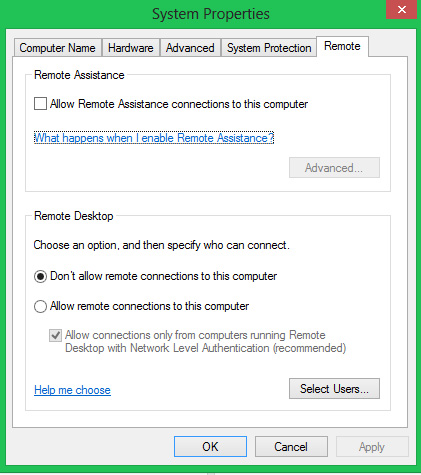
2) Uncheck the top box, and make certain the radio button is blackened in front of Don’t allow remote connections to this computer.
remote desktop disable


3) click Apply, and 4) OK.

Congratulations. You’re done.

You may wish to read in the System Properties window What happens when I enable Remote Assistance? and Help me choose. Especially, if you’re considering applying this to an office computer. You can always re-enable Remote Assistance at any time if you actually need someone you know or you’ve called to access your computer, then disable it again later.


Have a safe and successful computing week, and thanks again for following Patti’s Pathways. 😀

Related blogs: Creating the Safest Passwords; and Spotting Hoax Emails;


DISCLAIMER: Any and all ideas presented in this blog are solely my own unless otherwise noted. I experience troubles with technology just like any other person, and if I stumble upon a fix or suggestion I feel could benefit others I pass it along. At no time, have I suggested or implied that I hold any degrees or certificates related to computer repair.

I have during my career assembled parts into working computers; done troubleshooting on hardware and software; utilized a great many computer programs and software; designed and updated websites and blogs; as well as created brochures, banners, and flyers.


Making Sense of Terms of Service (a.k.a. EULAs)

We’ve all done it. Yes, you have. Don’t deny it.Question mark smilie

“Done what?” you ask.

Rapidly read, or purposely skipped, a EULA for a software or app download.


What’s a EULA? over time you wish to use free or paid software or apps, you must agree to an End-User Licensing Agreement or EULA (their terms and conditions) before you’re allowed to download said software.


Most standard EULAs exist to protect developer ideas along with their licensing partners. This is especially true for apps. Many apps are independently created and sold for distribution to software giants like Google Play or The App Store (Apple).

The trouble is some EULAs aren’t standard. These EULAs are the problem causers.

timeThe trap many computer users fall into is the time trap. That’s the place where not-enough-hours-in-the-day meets the-abyss-of-EULA-legalese.

Some Time Management Thoughts

  • iTunes and Mag+ Publisher EULAs are each 33 pages long and over 15,000 words.
  • Paypal’s User Agreement has 16 sections for a grand total of 61 pages and over 26,000 words.

Guess how many words are in a novella? Yep, same amount: 17,500 to 40,000. And novellas are light reading. EULAs? Not so much.

I somewhat understand the Paypal EULA length since it’s a banking service, but still. Don’t get me wrong, I love Paypal. It keeps my credit card/banking info on one site rather than spread all over the internet.


More EULA Food for Thought

  • A few days ago, Nintendo updated its EULA for the Wii U gaming console.

If you don’t accept their new EULA terms, your game console shuts down and becomes unusable. Really nice after you’ve shelled out $300 or more USD for it originally.

The truly bothersome thing is the presidence Nintendo is setting. Now EULAs not only affect digital content, but actual physical items.


I know what you’re thinking, “Nintendo can’t do that. EULA’s aren’t really legally binding”.

If EULAs are or aren’t lawful depends solely upon the court trying the case. There have been court cases — ProCD, Inc. v. Zeidenberg is cited regularly — where courts have upheld the legality of EULAs.

So if EULA’s might be legally binding, what’s to safeguard the innocent computing public?Flying contract

We all know even when we read contracts sometimes the legal descriptions and verbiage just flies right over our heads. True enough? Not to mention the “boring” factor.


Here’s the blog section where I actually give you useful information. I knew you’d be happy.

First, some EULAs should be read in their entirety.

I’m talking about investment or financial sites. You have hard currency deposited with these places so you need to know what’s in their EULAs.

I’m also talking about sites that have access to your personal information.

Second, the following trick doesn’t work on EULAs that display in a pop-up window. However, it’s very useful for EULAs that display in .pdf form or browser windows.

Saving Time Reading EULAs

STEP 1: Know problematic EULA terms and phrases.

The terms or phrases the standard computing public should look out for include:

  • unlawful
  • pay/purchase*
  • share/give*
  • allow
  • trial*
  • rights
  • install*
  • uninstall/removal*

The asterisks (*) are the important ones, in my opinion (and that’s why you read this blog).

What we’re looking for with these terms are EULAs that state: a) they share or give your personal information away to other sites, b) may install other things on your computer (tracking software, tool bars, etc.), c) you can’t remove their software once you’ve installed it — Ha! I’d like to see them stop me — and d) you have to pay for something after a trial period, often at a cost that’s mind-boggling.

STEP 2: Determine if the EULA is a pop-up or not. This is easy. If it looks like the below example, and you can only click decline/accept or agree/disagree, it’s a pop-up. If that’s the case, I suggest you read it.
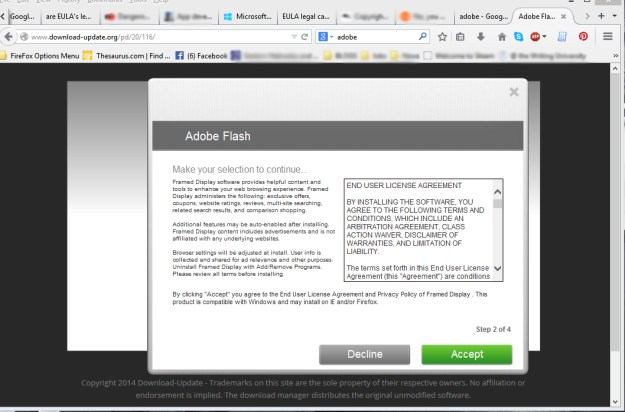
Adobe EULA WindowRemember, we can’t search a pop-up window for suspicious or unusual terms.

STEP 3: For a EULA in a browser window, Press Ctrl + F to search for terms or phrases.
EULA in Browser WindowNotice the nice box in the lower left corner? This is where you type your search criteria or terms.

STEP 4: Type in each term you wish to search out separately (see Step 1) then press Enter.

STEP 5: Use the up and down arrows to the right of the search box to view all your finds.


DISCLAIMER: This is my personal strategy. I am sharing it with the intent to help you avoid wasted time, and worse, legal problems. Use these techniques at your own risk. I am not a lawyer nor have I ever desired to be one.


Things You Should Know

1) When you put software on your computer, you do not now, nor will you ever, own it.

Most software is copyright by the developer(s) or the company who paid big bucks to the developer(s) to own it, and that wasn’t you.

Here’s an analogy. Written works are copyrights of the author who created them. You can pay $4.99 for a book, but you don’t own those writings. You own the book to read those writings, but not the original text.

It’s the same with computer software. But unlike books, you can’t loan a computer program to a friend for two weeks then get it back.

2) Many EULAs limit the resale of digital content. This has a lot to do with owner versus user rights like the ones we talked about above.

In 2010, a court upheld a developer’s right not to have its software resold courtroomor transferred by the original purchaser as stated in its EULA. This case came about by — you guessed it — a resale of software on Ebay.

The new and unopened software was resold by a gentleman who bought it at a business liquidation auction. The case started in 2008, and went back and forth on appeals. Check out Vernor v. Autodesk.  It’s interesting reading for computer geeks… and maybe even if you’re not.


Interesting Items in EULAs

Did you know…?

  • You can’t use iTunes for warfare.

“You also agree that you will not use these products for any purposes prohibited by United States law, including, without limitation, the development, design, manufacture, or production of nuclear, missile, or chemical or biological weapons.”

Personally, I’ve considered calling the Pentagon several times with suggestions of certain pop and rap songs usable as auditory weapons of mass destruction.

  • EA (Electronic Arts, a game company) isn’t responsible for “…LOSS OF GOODWILL, WORK STOPPAGE…”

Meaning if you fight with a friend over an EA game, don’t call them for bail, or if you call in sick or late for work because of their game and get fired, you can’t sue them for lost wages. Makes perfect sense to me.

  • Facebook can give anyone your info at anytime.

“…you grant us a non-exclusive, transferable, sub-licensable, royalty-free, worldwide license to use any IP content that you post on or in connection with Facebook (IP License).”

Facebook does give you an out by stating the above is “subject to your privacy and application settings”. So if you have strict privacy settings, they won’t give away as much of your stuff to everyone else on the net. They explain their reasoning in the next blurb.

“When you publish content or information using the Public setting, it means that you are allowing everyone, including people off of Facebook, to access and use that information, and to associate it with you (i.e., your name and profile picture).”

Last Thoughts on EULAs:

  • A few weeks ago I blogged about unknowingly adding tool bars to your computer (Extra Annoying Programs). Some EULAs do this.

Be careful to uncheck any boxes that could download extra content to your computer or browser before you agree to a EULA.

My Suggestion

contractIf you must pick and choose which EULAs to read, read the ones that matter.

Those would be from banks and financial institutes, and any site that has access to your private information.

On the freebie programs with no personal info, I’d search for download, tracking, location, and call it good.

Why?

1) You’re looking for anything downloading you don’t know about, and 2) mobile devices now can pinpoint your location like a GPS.

Number 2 is particularly bad if strangers want to track your kids, and particularly good if you want to track your kids.

My last suggestion is to use EULAs as bedtime reading. The “boring” factor I talked about earlier really comes in handy for insomniacs.

Have a great week, and thanks for following Patti’s Pathways. 🙂


Related posts you might like: How Secure is Dropbox? Extra Annoying Programs


DISCLAIMER: Any and all ideas presented in this blog are solely my own unless otherwise noted. I experience troubles with technology just like any other person, and if I stumble upon a fix or suggestion I feel could benefit others I pass it along. At no time, have I suggested or implied that I hold any degrees or certificates related to computer repair.

I have during my career assembled parts into working computers; done troubleshooting on hardware and software; utilized a great many computer programs and software; designed and updated websites and blogs; as well as created brochures, banners, and flyers.

Welcome Windows 10!

October is a nightmare month for me. Terrifying in terms of the number of places to scared girlgo and people to see, not to mention stuffing day-to-day activities into the same time frame.

But guess what? I have more planned at the end of the month, but until then…  I’m baaaack. Cue scary music.


A few weeks ago I informed, notified, warned —pick your poison — of a new Microsoft OS on the horizon. The big announcement came on September 30 as promised, but speculation the new operating system (a.k.a. Threshhold) would be unveiled as Windows 9 was wrong. Microsoft skipped right over the number nine and went straight to double digits.

Welcome To the World Windows 10!

Hello little Windows 10.  We hear you’re a lot less horrifying than Windows 8 (which isn’t anywhere near as petrifying as Windows Vista). We want you to be our friend.

Niceties out of the way, it’s time to dissect our new buddy Windows 10.

With Windows 10 Microsoft has tried to lessen confusion by bringing back the familiarity of Windows 7 while keeping the new interface of Windows 8. Thank you Microsoft development crew.

Windows 10 is probably what Windows 8 should’ve been. Glad to see Microsoft realized the general public wasn’t ready for a futuristic Windows product just quite yet.

A few days ago Microsoft released a test version of Windows 10, and anyone can words only scary microsoftdownload it. But beware.

Windows 10 Technical Preview has numerous bugs, but that’s to be expected. It’s a preview. What wasn’t expected is the depth to which this preview can access your personal information.

“When you acquire, install and use the Program, Microsoft collects information about you, your devices, applications and networks, and your use of those devices, applications and networks. Examples of data we collect include your name, email address, preferences and interests; browsing, search and file history; phone call and SMS data; device configuration and sensor data; and application usage.

For example, when you:

* install the Program, we may collect information about your device and applications and use it for purposes such as determining or improving compatibility,

* use voice input features like speech-to-text, we may collect voice information and use it for purposes such as improving speech processing,

* open a file, we may collect information about the file, the application used to open the file, and how long it takes any use it for purposes such as improving performance, orscreaming woman

* enter text, we may collect typed characters and use them for purposes such as improving autocomplete and spellcheck features.”

Scared spitless yet? You should be.

The good news is other people have downloaded and tested the preview so we don’t have to. Thank you brave computing souls.


What’s new in Windows 10?

Windows 10 has a fresh — not as alien as Windows 8 — look. Some of the icons within Windows 10 look different, but basically function the same as Windows 7.

  • Apps will appear in separate windows.
  • There are dozens of new shortcut key commands. Like “snapping” windows into different corners of your desktop.
  • File Explorer gets smarter in Windows 10. It’ll remember what you recently opened and keep track of your favorite files so you have faster access to the files you use regularly.
  • Taskview will be available so you can see all your open windows along the bottom bar of your desktop.
  • Search includes Internet finds.
  • MS also did some housekeeping, making a few minor changes. Like the ability to cut and paste into the command prompt, which will make intermediate computer users fairly happy.
  • Probably one of the neatest new features is multiple virtual desktops.

What’s that mean? Say I’m working on my blog and have Adobe Photo Shop open, MS Word open, plus a few web windows (WordPress edit, WordPress preview, etc.).

Someone asks me to start a spreadsheet project or to look up something on the internet for them. Before Windows 10, I’d need to add this to my sole desktop mess of open windows. With Windows 10, I can open a new, clean virtual desktop and work there.

With a few mouse clicks or shortcut keys, I can switch between virtual desktops. From what I understand, there is an auto-save function so you can call up your virtual desktops on any device at any time.

NOTE OF CAUTION: When you’re 100% through with a project on a virtual desktop, close/erase the desktop. I foresee people unfamiliar with these eventually having 30 or more virtual desktops open and wondering why their computer performance is suffering.


Okay, now to address the big question for us casual gamers: does Windows 10 have OpenGL?

Windows 10 description says it ships with DirectX12. I have a feeling as with Windows 8, there’ll be no OpenGL on Windows 10.

But fear not! The Grim Reaper hasn’t come for us yet.Grim reaper

At least for Minecraft junkies, there’s a silver lining. Sorry Angry Bird fans, you’ll have to tweak OpenGL as detailed in my first post. See below for the link.

For Minecraft fanatics, the great news is that Microsoft recently purchased Minecraft from Mojang. There’s little doubt Microsoft will fix the Minecraft issues to run with its Operating Systems. It would be counterproductive for them to leave their game unplayable on their OS… I hope.

I’ll update the OpenGL info soon after Windows 10 is released.


Whether you run a 4″ mobile device or an 80″ LED screen, you can use Windows 10. Keep your eyes and ears open. Rollout should start spring of 2015.

Have a great week, and thanks for following Patti’s Pathways. 😀


Related Blogs: On the Threshold of Windows 9, A Notch in the Belt of Microsoft, Finally a Fix for Windows 8 OpenGL Error


All images used within EULA parameters granted by Microsoft.


DISCLAIMER: Any and all ideas presented in this blog are solely my own unless otherwise noted. I experience troubles with technology just like any other person, and if I stumble upon a fix or suggestion I feel could benefit others I pass it along. At no time, have I suggested or implied that I hold any degrees or certificates related to computer repair.

I have during my career assembled parts into working computers; done troubleshooting on hardware and software; utilized a great many computer programs and software; designed and updated websites and blogs; as well as created brochures, banners, and flyers.

Spotting Extra Annoying Programs

Whether you read this headline and thought “Extra programs are annoying”, or “Yep, some programs are extra annoying”, it doesn’t matter. Both are equally true.

Annoying programs come in all shapes and sizes. Some are free, some are not, and some are free for a certain number of days. These free trials are known as Bloatware. Like Microsoft Office, they come pre-installed on your new computer or mobile device. You pretty much have no choice with these. The only thing you can do is decide which ones to keep (i.e. eventually buy), and which ones to delete.

Where you do have a choice are with programs I like to call tag-alongs. They’re officially known in the tech industry as adware, spyware, junkware, or crapware… and those are only the names I can reference in polite society. These names alone should tell you what the IT World thinks of them.

Grab a cup of tea and let me tell you about tag-alongs.


smiley bookOnce upon a time in computing history, a business decided when a person downloaded a chosen program it’d be profitable to add theirs as a bonus. The end-user thought receiving extra stuff for nothing was wonderful until he downloaded four more programs and was extended a dividend of four more tag-along programs. He realized some blessing were really curses in disguise, just like King Midas.

Unfortunately, there isn’t a happy ending… yet. But I’m going to help you recognize where these tag-alongs come from, and how to avoid them.

Most tag-along programs come with free downloads. I won’t say all tag-alongs come with freebies for the same reason a person shouldn’t say “never” or “always”.

In our story, we don’t care what causes those pesky additional programs to attack our computer, we just care that they do.


 Why Are Tag-along Programs Bad?

  • They slow down your browser.

Ever wonder how the Internet knows the exact brand of something you’ve just purchased?  Tag-along programs. Stealth programs known as Spyware or Adware sit in the back of your computer watching your purchases and website visits. Later they automatically toss-up advertisements that might interest you.

Why is this bad? These programs take precious seconds off your download speeds and clog up your computer’s RAM and hard drive memory.

Yes, we’re only talking extra seconds added, but Headache computercompound this by several programs and your computer speeds may rival 56K dial-up modems. Remember dial-up? I really don’t either. Trust me, it was horribly slow; we just didn’t realize it at the time.

  •  They load too many toolbars.

PC Magazine posted a super example of what happens when bonus toolbars load along with other programs. See the bottom where it says PC? That’s the PC Magazine website… under all the toolbars.
Toolbars


  • They take up memory.

Programs are programs. People think a few extra megabytes of RAM or storage space used has no impact. It does.


It’ll help us understand by knowing how computer memory works.

How Hard Drive Memory is Used

Imagine your computer hard drive as a piece of graph paper. There are squares across plus up and down where we save data. The top left square gets the first item saved. We’ll pretend each square stores a byte of data.Mona Lisa

First, I save a word processing document worth ten squares (bytes). Then I find a picture of the Mona Lisa I like so I’m saving it. Mona’s cost in space is five squares. So far I’ve saved fifteen squares of total data.

Oh, I forgot. I need to edit down my document; it’s too long. I erase two squares of data and re-save. I now have two open squares between my document and Mona on my hard drive.

Now I create a spreadsheet worth seven squares. Data saves in all open squares first. This means two squares of spreadsheet data are saved between my document and Mona while the last five of the seven squares save behind Mona.

This happens over and over as we save items to our hard drives. Computers slow down when we ask them to piece together an item spread out over many squares. NOTE: To speed up your computer, you can defragment or defrag your hard drive. You’ve heard that before, haven’t you? See. You’re smart.

What is RAM Memory?

Think of RAM memory like a kitchen counter. I store my food (data) in a refrigerator (hard drive), but when I want to use it I need a place to set it while I cook (RAM memory). Computer items (documents/internet pages/pictures park in RAM memory as I edit/read/view them. The larger the countertop (Random Access Memory), the more food (data) I can have out at one time.


 Spotting Tag-along Programs

Let’s talk about spotting rogue programs that seek us out. They sneak into our computers when we’re on auto-pilot after a long day, or after a frustrating hour trying to find a usable download.

  • Make sure to download the correct program.

This is the download screen I posted a few weeks ago in Password Protecting Items in Windows 8.

Even a trusted site like Download.com can be confusing. I wanted the 7-Zip download. There are at least two other programs on this page vying for my download. Neither of which I want.Download 7-zip


  •  Uncheck all boxes that will cause you to say, “Huh? How’d that get there?” later.

This is Java. You know Java. Almost every computer in the world runs something that uses Java. Well, when you update your Java — don’t worry, it’ll remind you — you’ll see this.

If you don’t uncheck the boxes, not only will you download and install the Ask search app, you’ll make it your default browser and your homepage. Don’t do it.added unwanted toolbars


  • Uncheck the boxes unless you really want the toolbar. You probably don’t if you’ve been fine searching the World Wide Web up to now.unwanted toolbars


There. Don’t you feel better? Now you know what to look for to avoid downloading adware, spyware, junkware, and crapware.infected

What? You think you’re already are infected? Don’t worry. You can get rid of those with no needles involved.

I can’t do better in my explanations than to direct you to Kim Komando’s site. She has easily understandable instructions. Thanks, Kim.
Remove Unwanted Toolbars-Kim Komando

Have a wonderful week, and thanks again for following Patti’s Pathways. Y’all come back now, ya’ hear? 😀


DISCLAIMER: Any and all ideas presented in this blog are solely my own unless otherwise noted. I experience troubles with technology just like any other person, and if I stumble upon a fix or suggestion I feel could benefit others I pass it along. At no time, have I suggested or implied that I hold any degrees or certificates related to computer repair.

I have during my career assembled parts into working computers; done troubleshooting on hardware and software; utilized a great many computer programs and software; designed and updated websites and blogs; as well as created brochures, banners, and flyers.