How Secure is Dropbox?

I was invited to Dropbox many, many months ago. I scanned info about it and decided the security risk might not be worth the free membership. I didn’t need it at the time so I shoved it into the recesses of my cluttered little mind.

Recently, I wished to download a free ebook. It comes Dropboxto me via Dropbox.

Now I had a decision to make. Did I pay $10 for the ebook or did I take the plunge and download Dropbox?

I downloaded Dropbox.


My first concern with Dropbox was at sign up. Their Terms Of Service shot me in the face at pointblank range.

“When you use our Services, you provide us with things like your files, content, email messages, contacts and so on (“Your Stuff”).”

Whoa. Hold on, buddy. I’m providing you with my files? How many of my files? I’m providing you with content? What kind of content and how much of it? The list of questions went on and on.

I was not letting Dropbox, or anyone else, get the drop on me. It was notcowboy hat rifling through my confidential files. I bank online, I dabble in the stock market online, and more.

It was time to saddle up and investigate.


Is Dropbox Secure?

My first order of business was to figure out what exactly Dropbox did.

Dropbox is a server that houses whatever you save to it — or anyone else saves to it — for later use by you or anyone you want to share “Your Stuff” with.

Okie dokie. That’s fine. But the elephant — or Clydesdale since I’m on an American West theme today — in the room is how deeply into my computer can an install of Dropbox dig? And could the Dropbox desktop program installed on my computer access my files without my permission?

My first clues are in Dropbox’s Privacy Policy.

1)  “If you give us access to your contacts, we’ll store those contacts on our servers for you to use.”

“If you give us access” calmed me. It told me unless I was an idiot and uploaded something, they couldn’t access it.

FYI: This quote refers to the option they give you to upload your contact list. You can; I didn’t.

2) Dropbox will legally protect my data the same if “… it’s stored on our services or on [my] home computer’s hard drive.”

This just told me Dropbox can’t access my hard drive. Only the files I choose to upload to their site. But I am gambling on the fact they have no security holes allowing unauthorized people to rustle information off my computer’s hard drive.

3) “Dropbox uses certain trusted third parties …. These third parties will access your information only to perform tasks on our behalf … “

clock with wingsI don’t have time to check out Dropbox’s trusted third parties. I am taking a leap of faith here, and praying they’d pass muster with me.

4) Dropbox also says I can — not they will — give third parties access to my info and Dropbox account. They mean third-party apps I choose to use with Dropbox.

5) Dropbox says they keep my information safe with “two-factor authentication, encryption of files at rest, and alerts when new devices and apps are linked to [my] account.”

I am very happy with the latter two statements. The first? Not so much. I pay per text received or sent.

I know what you’re thinking, We’re taking piggy banktechnology advice from a woman who has no keypad on her phone?

My personal economic philosophy is pretty much use what you have as long as it’s cost-effective, getting the job done and repairable. When it’s not, it’s time to upgrade.

6)  Dropbox’s Terms of Service include: “We need your permission to do things like hosting Your Stuff, backing it up, and sharing it.”

This tells me since my permission is needed to do things their site is designed to do, they won’t be doing anything their site isn’t designed to do …unless I give them permission.

Would I recommend Dropbox?

For some things, I would.

Dropbox seems a God-send for business people who work away from the office, and for business teams or students working on projects without the ability or need to meet frequently.

Dropbox allows a person invited to view a file to edit it also. FYI: Dropbox is working on a Read Only business option.

Any downside?

Besides security issues — I know, I know. Dropbox says they’re as secure as your bank. I’m not buying it  — the only downside I foresee is account/file maintenance.

  • Any file edited on Dropbox must be downloaded and resaved by each participant who wants/needs a final copy.
  • Once a project is finished, and all the participants have resaved the product data, any Dropbox file should be deleted and cleared.

I would never use Dropbox to back up my hard drive/files and folders. There are safer and better choices for that.

Other Cautions and Concerns:

  • Early on Dropbox was not the safest cloud to float data on. But neither were a lot of others. Recently, mostly in 2014, Dropbox has dealt with issues and strengthened their security after easy infiltration by independent security researchers and the bad press that generated. I would still never use Dropbox to convey sensitive information.
  • If you think urgent security updates, changes, or notifications will be sent to you via email by Dropbox, you thought wrong. From what I’ve read, most of Dropbox’s important security explanations and/or information is only posted on their blog. You can access it at the bottom of Dropbox’s website.
  • Dropbox still seems nosey to me. Its memory banks retain things like my phone number and physical address.
  • Dropbox does have a policy titled Government Request Principals. Users rights seem to be first and foremost in Dropbox’s mind when data is requested by government entities, and I appreciate that.
  • Their encryption is server-side, not client-side. Meaning the key codes are stored along with your data on their servers. So if the data is lost to hackers, dishonest employees, etc. so is the information to decode it. 😦

IMPORTANT REMINDERS AND WARNINGS:

  •  It’s the user’s responsiblity not to post/share files that could at any time potentially fall into the wrong hands. These would include things like your personal income tax returns, your bank statements, licenses, etc.
  • It’s always a good idea to log out of social media sites and other online sites (Dropbox included) that hold your personal information. Yes, I know it’s much easier to just leave them logged on, but logging off lessens your security risks.

Frog thoughtREADER INVITE:  There are thousands upon thousands of individual apps usable with Dropbox. I’m specifically interested in the password protection apps. The ones that keep your file password protected after it’s uploaded to Dropbox. Let me know which one is your favorite and why.


Thanks for reading, have a great day and safe computing! 😀


DISCLAIMER: Any and all ideas presented in this blog are solely my own unless otherwise noted. I experience troubles with technology just like any other person, and if I stumble upon a fix or suggestion I feel could benefit others I pass it along. At no time, have I suggested or implied that I hold any degrees or certificates related to computer repair.

I have during my career assembled parts into working computers; done troubleshooting on hardware and software; utilized a great many computer programs and software; designed and updated websites and blogs; as well as created brochures, banners, and flyers.


Creating the Safest Passwords

What happens when uber-smart guys with no direction get bored? They build programs, viruses or bugs to hack computer databases. Yeah, I know what you’re thinking—that’s not so uber-smart. Well, there is a difference between intelligence and common sense, but that’s another blog topic.

When the media reports new cyber attacks on the general populace, I don’t get gray hairs over it. Why? Because I believe my passwords are relatively safe. And, to be honest, relatively safe is as close as any of us can get.

Amazon, Ebay, and many other sites go the extra mile in ensuring user security by encrypting  your password on their end. They utilize programs that scramble login information daily. When you log into your account, your password is different today than it was yesterday to anyone hacking their databases. Super neat tool, but the regular joe out there usually doesn’t have the knowledge or the skill level to accomplish this.

So what can you do? Today, I’m going to offer you suggestions I’ve gleaned over my internet years regarding creating safe passwords.  My tips and hints come from tech guys I personally know or from media sources that echo what my tech guys have told me.


Creating the Safest Passwords

First, what NOT to do.

1) Don’t use easily guessed passwords.Wordpress Login

The most commonly used — and easiest to guess — are 111111, aaaaaa, abc123, iloveyou, admin, and password.

You knew that already, didn’t you?

2) Don’t use the same password on everything.

I know what you’re thinking: “Patti, if i take your advice, I will never ever remember all my passwords”. I’ve added helpful tips at the end of this article to help with that.

Now, what to do.

1) Use random words, numbers and/or special characters.

A tech admin once told me a safe pass — and easiest to remember — is one made up of random words with a number inserted between. E.g. fight12puppies

2) Use an obscure password.

We can make our password even safer by changing some of the letters to numbers, and changing the case. E.g. F1gHt12pupp1Es

This is harder to remember, but go to the tips at the end of this blog for help.

3) Use a catch phrase.

By catch phrase I mean take a phrase and use the first letter in each word. E.g. We love our 12 puppies who fight.  The new password created is Wlo12pwf. This is a great password because I have difference letter cases (upper case W with the rest lower case) plus a number (12) in the new password.


Other Password Thoughts and Tips

fingerprint

There are fingerprint readers Microsoft says work with Windows. I haven’t tried them so I can’t recommend them, plus there are many monitors still out there that are not touchscreen. And as we all know: old technology is better than no technology …sometimes.

Rutgers University thinks the future of passwords is random squiggles and drawings on devices with touchscreens. Does anyone besides me see a huge downside to this? When you request a forgotten password, does the company/site send you a picture of your squiggles? What if you don’t squiggle exactly the same each time? Are you locked out?

  • Keeping your passwords straight.

Create a document on your computer that has all your passwords.

I know, I know. You’ve been told never to write down your passwords. Well, that just isn’t feasible in our new culture of online bill pay, online shopping, online social networking, et cetera, et cetera, et cetera. Especially when you’ve been told not to use the same password for everything, more accurately for anything.

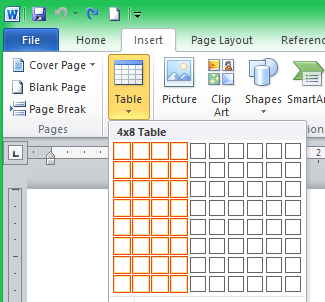
Word tableI personally use MS Word. I inserted a table with four columns: 1) the URL/web address, 2) the email address used (I have several: business, personal, etc.), 3) my ID if different from my email address and 4) my password.

You can also use Excel, Wordpad, Notepad, whatever you have at your fingertips. A word of caution: don’t save this document to your desktop where anyone walking by while you’re getting coffee will be tempted to open it. Hide the document in a folder you can readily access on your hard drive.

  • Where to hide your super secret password file

If your file is saved to your personal computer, especially one used by several people, you could bury the password document under layers of folders. E.g. C:\user\computer\passwords.doc. But…it’s so much easier to save it to a flash drive. Flash drives are $5 on sale. Buy one!

If you do keep your password file on your main computer, don’t forget to copy and periodically update a backup on your flash drive, or eternal hard drive. This saves your file in the event of a computer crash, plus it’s easily portable.

Another word of caution. Always, always, always… log out of any account you use (email, bank, Facebook, etc.) on a public computer, no matter where it’s located. A coffeehouse or motel computer is used by thousands of people. You never know who could stumble across your information if you don’t log off.

  • What to do if a major retailer’s database is hacked?

 Not long ago Target’s credit card database files were hacked. I wasn’t all that worried as my password wasn’t in jeopardy. I just watched my credit card statements more closely. You can dispute charges within a reasonable amount of time, usually 30-45 days. This goes for your bank account also. Keep tabs on those.

And only a few weeks ago Ebay was hit and information stolen, including their encrypted passwords. Ebay programmed their site to force shoppers to change their passwords when they logged on, which I think is a sensible response. No financial or personal information was threatened, but a good move on their part regardless.

I personally try to use Paypal for as many transactions as possible online. Why? Because my credit card number isn’t scattered around the worldwide web at one hundred retailers, it’s saved at one…Paypal.


I hope this post helps secure your day-to-day networking lives. Using the internet can be challenging, but it’s very rewarding and does simplify our lives bringing so much information to our fingertips.

Well, I’m off. I need to backup my password file to my flash drive. 😀


DISCLAIMER: Any and all ideas presented in this blog are solely my own unless otherwise noted. I experience troubles with technology just like any other person, and if I stumble upon a fix or suggestion I feel could benefit others I pass it along. At no time, have I suggested or implied that I hold any degrees or certificates related to computer repair.

I have during my career assembled parts into working computers; done troubleshooting on hardware and software; utilized a great many computer programs and software; designed and updated websites and blogs; as well as created brochures, banners, and flyers.

Setting Up an Effective Blog

I am a novice blogger with common sense. Meaning I’m less dangerous than a pit viper, but more dangerous than a kitten.

So, take this information for what it’s worth—most likely free.

How to Set Up an Effective Blog

1.) Brainstorm a unique name for your blog BEFORE you set it up.

An A-list blog name will help people remember you and give your blog a professional look.  Some people use their names (these are usually authors or people who want name recognition), some use their blog title (I do), and some do neither.


My experience: My blog started as a one-time blog to publish a solution for a computer typewriter 60percent sizeprogramming problem many of us were experiencing, but no one was detailing a fix.  My blog received thousands of hits in a short time. I like writing so I wanted to expand my blog, but I also wanted a more professional URL.

At this point, I had two options: 1) start over or 2) set up a new blog URL and figure out how to export my posts and comments. I chose the second. The think tank of me, myself and I voted on a new — and as yet unused — blog name, set up the URL matching that name then exported my blog posts and pages to my new site. WordPress made it relatively painless with their helpful instructions, but It is MUCH easier if you decide on a name beforehand.


2). Create your URL on the blogger site you wish to use.

Ask your friends which sites they like and why, and/or you can search the pros and cons of blog hosting websites. I’d do both.

3).  Know the Save Draft and Preview buttons.

Find, become familiar with, and use these. draft buttonThe Save Draft button is your best friend, while the Preview button is everyone else’s best friend. Preview allows you — and only you — to review your raw post before publication without forcing the general populace to do the same. Using Preview only, you can make a test blog in perpetual draft format to play with in your blog editing program.

4). Insert relevant photos to break up the verbiage and make your blog more interesting.

I use my own photographs/clips, those in the public domain, or usable with permission. I never knowingly infringe on the copyrights of others. My philosophy: “Do unto others as you would have them do unto you”.

5). Use meta tags effectively for each new blog post.tags

Meta tags are important if you want people to find your blog using a search engine. I include my blog name in my search tags.

6.) Use links and auto post timesavers.

You can add links to your blog redirecting followers to your own or other people’s websites. You can also automatically notify followers of your new blog posts via other social media outlets (Facebook, Twitter, etc.). Some paid upgrades allow you to automatically repost your entire blog post to social media. Your blog help site should have How-to information.

7.) Post regularly.amish men crop

A regular blog can be posted daily, weekly, or monthly. It’s important to update yours periodically or your followers will forget you, or quite possibly think you’ve joined the Amish.

8.) Learn your blog program’s limitations.

If you have a formatting-perfection gene, you’ll need to resolve yourself to your blog program’s limitations… or you’ll need counseling.

Blog programs hyphenate in places there shouldn’t be hyphens, set photos less than exactly where you’d like them, etc. You can lessen your stress by learning a few html commands, but while your blog can be well-written and aesthetically pleasing, it will probably never be perfectly formatted.


Miscellaneous blog thoughts:

A blog is not a cash cow. Blogs are done for name recognition, to garner a following or to showcase a product for sale. No matter what anyone tells you, you can’t quit your day job because people visit your blog.

Attention Writers! If you’re an author, be aware some contests will allow previously blogged stories and some will not.

Take your time. It’s easy to update blogs, but easier on your followers if you take time to make certain everything you want to say is in a blog before you publish it. If you left out something, leave it out or if it’s super important, consider writing an entirely new blog on the subject rather than updating after publication. It’s less confusing for everyone this way.

Spelling, punctuation, and grammar errors can — and should — always be repaired and the old blog updated no matter when you notice them.

After you’ve become a seasoned blogger, you may want to take advantage of the perks paid upgrades offer. There are many things you can do (e.g. plug-ins) which paid sites allow that free sites do not. Sometimes for security reasons; most often to create a revenue stream. I have no problem with sites charging for upgrades— this keeps their free offerings free and their site in business.

Wishing You Happy and Effective Blogging! 😀


DISCLAIMER: Any and all ideas presented in this blog are solely my own unless otherwise noted. I experience troubles with technology just like any other person, and if I stumble upon a fix or suggestion I feel could benefit others I pass it along. At no time, have I suggested or implied that I hold any degrees or certificates related to computer repair.

I have during my career assembled parts into working computers; done troubleshooting on hardware and software; utilized a great many computer programs and software; designed and updated websites and blogs; as well as created brochures, banners, and flyers.
Windows 8: Administrator Accounts

If you are fairly computer literate like me—I know enough to be dangerous—at times you’ve found yourself wanting to move something, run something, delete something, and Windows tells you “You do not have permission to do this”. You think, “Huh? It says I’m an administrator.” So why then is Windows putting the kabosh on any changes you wish to make?

Here’s why you get that nasty, heartless message. There are two kinds of administator accounts in Windows.

Administrator User: an unelevated  administrative account created by default. This gives administrative rights to access your computer completely and make certain changes. As an Administrative User you are allowed to “Run as Adminstrator” any elevated program or make changes that affect every user.

Built-In Administrator: a hidden elevated  administrative account with unrestricted access rights and permissions.

See the difference?
Administrator User allows you to mess with your computer a bit.
Built-In Administrator lets you mess up your computer completely beyond recognition.

Insert appropriate warning here to back up computer files before making any changes.


OTHER USEFUL WARNINGS: 1) Always leave at least one account set as an Administrator User or you’ll be locked out of making changes to your computer, and if that happens you are on your own :-p 2) If you enable Build-in administrator, create a password to protect it.


Today, we’re talking about Built-In Administrator for Windows 8 specifically.

A lot of changes can be made with your regular “unelevated” Administrator account, but if you find that you just can’t by-pass Windows security to make changes, you’ll need to enable the super secret, not-to-be-named “Built-In Administrator” account.

Some things to know about the Built-In Administrator account: 1) Its folder won’t show up until after it is first used, 2) Apps cannot be downloaded with the Built-In Administrator, 3) This account should only be used to make program/folder changes and NOT as a regular user account, 4) Because of number 3, log off of the Built-in Administrator as soon as you are done using it.

There are several ways to activate the Built-In Administrator, I’ll show you the easiest way because the rest are really only for tech support guys who like to mess around and have too much time on their hands.  (#.#)

How to Activate Built-In Administrator:

1) Owindows-keypen your command prompt by holding down the Windows key  and pressing “X”.


This opens in the bottom left-hand corner:

Windows+X

2) Click Command Prompt (Admin)

3) Type in:  net user administrator /active:yes

After you enter, you’ll have this.

command prompt-admin

NOTE: There are cautions around the web forums to disable Built-In Administrator when you are done using it. If you log off each time, I’m not sure that’s necessary. It’s your call. TO DISABLE: use the same command line, but change the ‘yes’ to ‘no’.

4) Now you can log off and see your new Built-In Admin account.

What? You don’t know how to log off Windows 8. Neither did I so chill, it’s easy.

side commands


A) Hover over the top or bottom right corner of your screen until you see this handy menu. B) Click “Start” in the middle. C) Click on your picture in the top right corner, and Voila! You are in control of Windows 8 once more. D) Click Sign Out.

Windows 8 will force the shut down of open programs—it’s nice and will ask if that’s okay first, but you have very little time to decide so don’t lolly-gag.


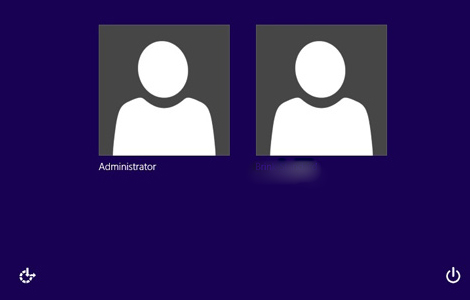
You should now see this screen after a few minutes (if you get the Pre-screen—not the technical term for it—just click on it to be rid of it).

Admin logon

There’s your Built-In Administrator on the left. 5) Click on it and enter.

The first time you, enter you’ll get mini-Windows 8 tour complete with elevator music (I’m teasing about the music. Honestly, I don’t know…I had my sound muted.)

Now you are free to mess up your computer at will!

In all seriousness, be careful what you do on this account as things done in error can adversely affect how your computer works and even IF it works.

side commands


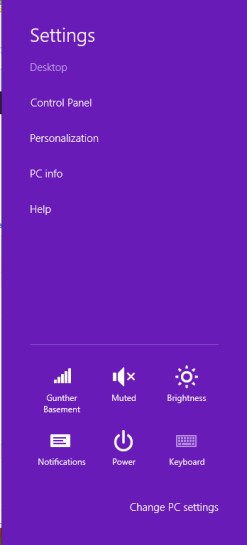
To add a password to protect your new super secret Built-In Administrator account: A) Hover over the top or bottom right corner. On your handy dandy side menu, B) click Settings at the very bottom.


Setttings


C) Click Change PC Settings at the bottom of Settings.


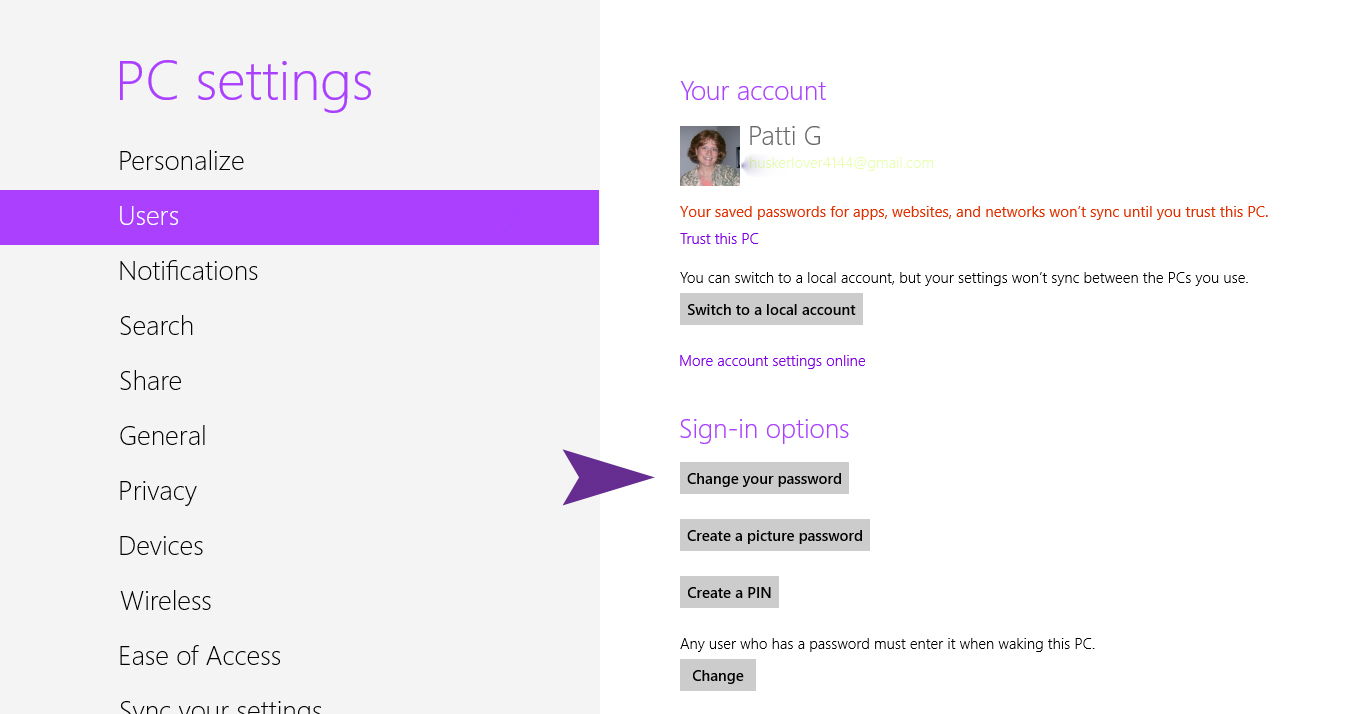
Now D) click Users and E) Change/Add your Passwordchange password

IMPORTANT TIP: If you’re like me and tend to forget passwords or write them down wrong/forget to update them in your Word.doc table, there is a very useful tool you should utilize. While logged into your Built-In Administrator acccount under Control Panel (Windows key + X) > User Accounts > click Built-In Administrator > in the left margin “Create password reset disk”. A flashdrive is all you need.

Good luck, and thanks for following Patti’s Pathways.:-D


DISCLAIMER: Any and all ideas presented in this blog are solely my own unless otherwise noted. I experience troubles with technology just like any other person, and if I stumble upon a fix or suggestion I feel could benefit others I pass it along. At no time, have I suggested or implied that I hold any degrees or certificates related to computer repair.

I have during my career assembled parts into working computers; done troubleshooting on hardware and software; utilized a great many computer programs and software; designed and updated websites and blogs; as well as created brochures, banners, and flyers.

Brainstorming With Your Child

I inherited a form of OCD (obsessive compulsive disorder) from at least one of my grandparents—I can’t throw away a perfectly good box. Included with that is the inability to toss a magazine article that might someday prove helpful.

While sorting through papers—the paper monster was eating my desk alive—I stumbled across two small articles from a 1995 Family Circle magazine. In my never-to-be-humble opinion, the info in them is very good.

The examples are school related, but could be used in a number of settings. The first article is titled “Problem Solving” and the second, “Effective Praise”.

Print them out and reread them after each time you wish you’d remembered them first. Don’t worry, you can ask for a do-over. Kids are great that way. But be warned…lo and behold, someday you’ll remember them when the time is right.

PROBLEM SOLVING [September 1, 1995 Family Circle]

Listen to the child’s feelings or needs.
Parent: You seem very upset about failing your Spanish test.
Child:   I am! I only got 12 words right, and I studied for an hour last night! Maybe I’m not good at languages.

Summarize his point of view.
Parent: You sound pretty discouraged. Even through you tried to cram all those new words into your head, some of them just refused to stick.

Express your feelings or needs.
Parent: My concern is that if you don’t memorize the basic vocabulary, you’ll get further and further behind.

THIS IS MY FAVORITE PART
[Calmly] Invite the child to brainstorm with you in order to find a solution.
Parent: I wonder, if we put our heads together, could we come up with some more effective ways to study?

Write down all ideas — without evaluating. [Do not insert comments or criticism here]
Child: Drop Spanish.
Parent (writing): I’ve got that. What else?
Child: Maybe I could…

Decide which ideas you don’t like, which you do, and how you plan to put them into action.
Parent: What do you think of this idea: making flash cards and studying four new words each night instead of 20 at once?
Child:   That’s okay. But instead of flash cards, I like the idea of saying words into a tape recorder [this was printed in 1995. Insert your own technological device name here] and testing myself until I know them.

EFFECTIVE PRAISE [September 1, 1995 Family Circle]

Excited Child: Listen to my poem about a train. Tell me if it’s good.

Instead of just saying “Beautiful! You’re a really terrific poet.” try these techniques…

Describe what you see or hear:
“You caught the ‘chug-a-chug’ rhythm of a train, and you found a way to rhyme track with clickity   clack.”

Describe what you feel:
“It makes me feel as if I’m sitting in a railroad car speeding through the countryside.”

Avoid criticism:
“Look at these misspelled words—you can do better than that!”

INSTEAD
Point out what needs to be done:
“All this poem needs now is the correct spelling of ‘caboose’ and ‘freight’.”

IM000580.JPG


No, I don’t have a Master’s in Child Psychology—I got my degree at the school of hard knocks. Yes, these sound cheesy when you read them, but they might just work. What have you got to lose? Possibly another bad grade on a Spanish test or a missed opportunity to encourage a future poet laureate. 😉

The True Faces of Cyberbullying

Cyberbullying

My nephew did a project for a college class on cyberbullying. The resulting reactions aren’t surprising.

With several people in my life having Asperger’s Syndrome, bullying has been a real problem–sometimes intended, sometimes merely perceived as real. Trust me, misinterpreted comments are no less traumatic when the recipient thinks they are real in intent.

Most often saying nothing is best.

Click to Watch Video
The True Face of Cyberbullying


Tourette’s Syndrome and the Effects of Sweeteners

I am the goddess of this blog so I’m allowed bouncing Honeyaround from subject to subject if I wish it. So there!

Today I’m writing on the effects of sweeteners on Tourette’s Syndrome.


IMPORTANT NOTE: Withdrawl side effects from stopping some medications cold turkey have horrible consequences. Always consult your doctor before stopping any medication prescribed to you or your child.


Someone very close to me has Aspergers and Tourette’s Syndrome–my son. Standard medications (Ritalin, Concerta, etc.) for the treatment of Aspergers and ADHD possibly contributed to the manifestation of his Tourette’s Syndrome, but certainly exacerbated the tics associated with it. Some of the physical tics were so severe I feared they would cause bodily harm. Strattera caused incredible anger issues, but that’s another topic. Let’s just say he’s the poster child for medications that should work, but do not.

In late elementary and through middle school, his tics manifested as physical (head whipping, arm jerking, etc.) and verbal. The verbal tics were not the spouting of profanities as often heard about, but more barking, chirping, and/or grunting. If you’ve ever seen the Lord of The Rings scene when Golem grunts his name, that is exactly one of his tics. Whether it was planted in his subconscious by the movie or it just randomly appeared, we’ll never know. 🙂

In high school, his tics were primarily verbal. For many years, his psychiatrist prescribed Pramipexole and Benztropine (medications designed to treat neurological movement disorders). These did help. If we’d only known about the effects of sweeteners, those drugs would not have been necessary.

At seventeen years of age, he unilaterally stopped taking all his medications. Prior to this, he was sporatically taking them so there wasn’t the need for weaning him off them. Before you judge me an unfit parent, realize he was taller and outweighed me substantially. There was no “making”  him take anything.

The surprising results of his medicine rebellion were the tics associated with his Tourette’s Syndrome improved greatly and the mood swings never worsened.

Over the next few months, we discovered diet plays a significant part in keeping Tourette’s Syndrome symptoms at bay. We restricted red and yellow dyes. This was nominally successful.The thing that made a night and day difference was the limiting of sweeteners.

Here’s what we found.

  • Artificial sweeteners, in any amount, threw his tics off the charts.
  • High Fructose Corn syrup, which is in so many of the products on the grocer’s shelves today, came in a close second.
  • Fructose when taken in excess causes problems. A few glasses of orange juice turns on the verbal chirps  and grunts.
  • Other sweeteners such as honey and white or brown sugar do cause problems, but not to the extreme as the others listed above.

True to human nature, there are times when Ovaltine, orange juice or soda are too much of a temptation to leave alone. Several glasses in a day cause his verbal tics to return. After two to three days of limiting sweeteners to sane amounts, the tics reduce greatly or disappear completely.

If you or your child has Tourette’s Syndrome, experiment with sweeteners. You may be pleasingly surprised at the outcome.


DISCLAIMER: Any and all ideas presented in this blog are solely my own unless otherwise noted. Any health-related advice is what seems logical to me after research and investigation. At no time, have I suggested or implied that I hold any medical degrees or certificates related to nutritional, psychological, pharmaceutical, or medical health.

Finally, A Fix for Windows 10 (8 and 8.1) OpenGL Error

UPDATE!  Visit my new blog to find an easy fix when Windows 10 automatically updates your newly tweaked graphics driver. When Windows Auto Updates Your Graphics Driver.


This Fix for the OpenGL Error post is now easier to use. I’ve moved the driver tweak for Windows 10 to the top, but kept the original post for Windows 8 and 8.1 toward the bottom in case anyone still needs it.

alligator thumbs upI’ve also moved my awesome reader discoveries into the section they reference. If you have questions, read the massive comment section because someone has probably answered your question there. I totally love my readers!

Happy Gaming!


Back in 2012, I looked for options and ideas for a year — yep, an entire year — to resolve the OpenGL driver issues with the Windows 8 update. Windows 8 evolved into 8.1 and finally — thank goodness — was replaced by Windows 10. And since Windows 10 still did not include the OpenGL driver information, my blog is still as popular as ever.

I have Intel Mobile Series 4 Family Chipset drivers (yours are probably different) and Intel is not updating them for any of the new Windows products — thanks, guys (-.-!) — so I’ve been messing with work-arounds.

I finally have a solution that actually works and is easy to follow — I’m sure other solutions work, but I had trouble following them as I’m not a computer tech; I only know enough to be dangerous.


Thaddeus – “… the link you provided to the Intel site only works if they have the exact same driver as you. They have to be able to find the appropriate Media Accelerator Driver and 32 vs 64 on their own before any of it will work.”


Windows OS Driver Tweaks:

There are three parts to this tweak.

1) Downloading and modifying Windows 7/Vista drivers (the last Windows drivers with OpenGL),

2) getting Windows to allow you to install unsigned drivers,

and

3) finally installing your drivers.


NOTE: At the end are instructions to disable automatic driver updates. It’s important because if your Windows OS installs newer drivers, that will undo all the tweaks we’ve just made. Luckily, I have another blog on how to roll back the updated drivers.


It might look complicated, but trust me. it’s only detailed steps that are easy to take.

I’ve also been told that it could work—it does—to force Windows 7 drivers to run on the newer Windows OS’s, but it could cause problems. I haven’t had any—and I’ve been using it with Minecraft since 2013—but I caution you to use at your own risk.

Install Drivers for OpenGL to Use with Newer Windows OS’s:

1. Downloading and Modifying  Drivers

First, find your graphics card’s compatible Win 7/Vista drivers in .zip format and Save it. Wait! Don’t unzip/open it yet.

I have the Intel Mobile Series 4 Family Chipset so I found the Intel driver version 8.15.10.2555 (151718).


NOTE:You can download the already unzipped driver, but this is a headache since Windows OS tries immediately to install and hits you with a software/hardware incapatibility error.


How to Download Driver .zip File:

1) Right-click the downloaded driver .zip file; no doubt saved under “Downloads”.

2) Choose Extract to… any folder — write down or remember which folder. I use Winzip to unzip my files.

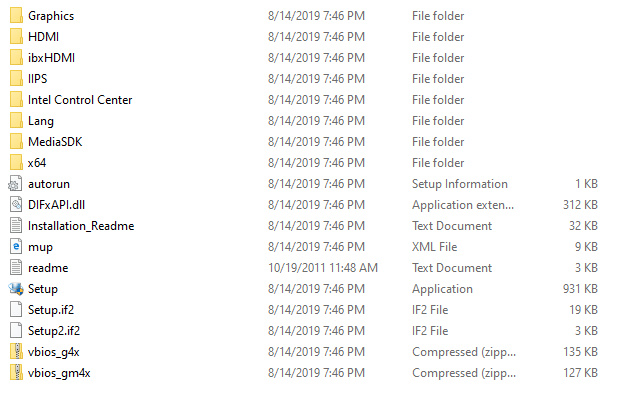
3) Open the folder where you placed your unzipped drivers. It should look something like this.

Driver Folder Example

4) In the Graphics folder, find igdlh64.inf , (or kit49684.inf in driver 8.15.10.2869, or kit 49659 in newer drivers) right click on it and choose to Open with Notepad.  Scroll to the Driver Information section.


NOTE: Remember not all Win7/Vista drivers are created equal. The newest driver on Intel.com (15.17.19.64.2869/ 8.15.10.2869) does not contain a igdlh64.inf file so see the note below. Mark and Omar replied that in the new Intel drivers (8.15.10.2869) instead of tweaking the igdlh64.inf file (igdlh.inf in 32-bit) under Graphics, a person can do the same to the kit49684.inf file.  I haven’t tried it, but it sounds perfectly logical and workable to me. This is spectacular news in case Intel ever stops offering the old driver downloads.

The “igdlh” file doesn’t read with the “.inf” extension in Windows 10 32-bit; it’s simply listed it as “igdlh”, but it is the only file that is listed as system info and editable in note pad.

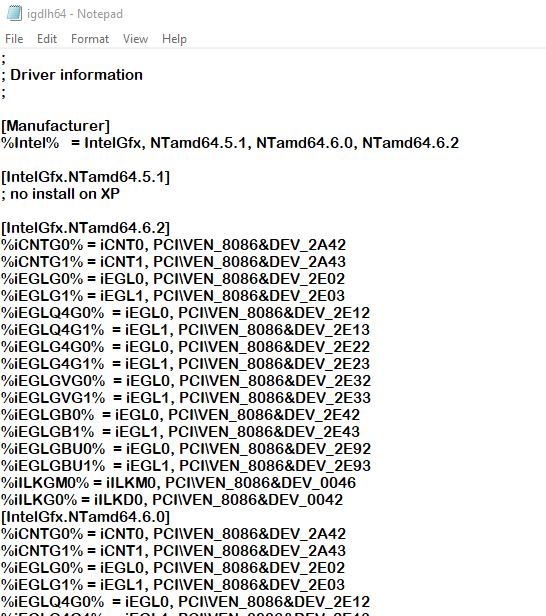
5) Copy everything under [IntelGfx.NTamd64.6.0] (or equivalent for 32-bit) and paste it under [IntelGfx.NTamd64.6.2].

Before Copy and Paste:

Drivers Before Tweak

After Copy and Paste, they are the same.
Driver After Tweak

6)  Go to File on the top bar and Save. You can  close the Notepad now.


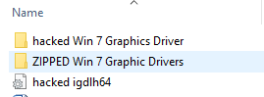
Time Saving Tip: save your hacked graphics driver file as just that so it’s easyhack Tip for saving driver to find later if you need to reinstall in your Device Manager. The saved hacked igdlh64 is probably not necessary since it’s already in the hacked driver, but I did it anyway. 😜


You’ve tweaked your drivers, but they will not install. Why? By default, Windows new OS’s will refuse to install unsigned or modified drivers. Getting the drivers to  install  requires disabling Driver Signature Enforcement.

2. Disabling Driver Signature Enforcement

Now, we need to start Windows in “Disable Driver Signature Enforcement” mode to install our modified driver, otherwise Windows will just block us.

NOTE: This section includes Windows 8, 8.1, and 10; scroll to your OS.

WINDOWS 10: Disable Driver Signature Enforcement

There are a couple ways to do this in Windows 10, but below is listed the easiest one, and we are all about easy.  FYI: Windows 10 is almost identical to Windows 8.1 so if you’re a visual person scroll up.

Disable the driver signature enforcement in Windows 10.
a. Press together Win + X
b. Click on Settings.
c. Scroll to the “Update & Security” section.
d. Click the Recovery Option on the left hand side.
e. In Advanced Startup section on the right hand side, click on “Restart now”.
f. Once your Computer has rebooted choose the Troubleshoot option.
g. Choose Advanced Options.
h. Then Startup Settings.
i. We’re modifying boot time configuration settings so you’ll need to restart your computer again here. Trust me it’s worth it. 😉
j. Choose the “Disable driver signature enforcement” option; probably F7 key.


You may view print screens at Step 4 below for Windows 10 since they are the same as Windows 8 and 8.1.


WINDOW 8: Disable Driver Signature Enforcement

1) Choose the Settings option (gear icon) in Windows 8 by hovering the cursor over the top or bottom right corner of the screen.

Gear

2) Choose Change PC Settings option

PC Advanced Settings

Windows 8.1 steps differ here (see Step 3a).

3) Windows 8: Choose General on the left hand side. Scroll down to bottom and choose Restart Now

General

–OR–

Windows 8.1: Disable Driver Signature Enforcement

Follow the same steps as Windows 8 until you get through Step 2, then start at 3a.

3a) Choose Update and Recovery

8.1 Recovery and Update

3b) Then Recovery

8.1 restart

  A huge thank you to Eightforums.com for the Windows 8.1 detail.

Windows 8, 8.1, and 10 steps are the same.

4) Click Troubleshoot

Troubleshoot

5) Click Advanced Options


Advanced Options

6) Click Startup Settings


Startup Settings

7) Click the Restart button

Restart

8) Choose the Disable Driver Signature Enforcement (mine is F7)

Disable Driver Sign

9) Enter to restart Windows.

IMPORTANT: There is a significant wait before the next screen appears, my Acer also went to the load screen for a split second. There are a lot of black and blue screens with the dots the circle telling you your computer isn’t dead; wait through these.


Now you should now be able to install the driver needed. After the driver installs, rebooting will enable driver signature enforcement again.


3. Installing Downloaded Drivers


Theo – “tried one last thing [to install drivers]. Run it as administrator and also run it in compatibility mode for Windows 7.”


1) Go to the folder where you saved your modified driver files.

2) Click the Setup.exe file.

Several things will happen. The installer will ask if you’re sure you want to download an unsigned driver. You are, so click 3) Download Anyway. Also the screen will go wonky for a bit during the download. It will return to normal soon.

Intel install screen

4) After install, hover again over top or bottom right corner and choose the Settings option.

Gear

5) Choose Control Panel.

Control Panel

6) Open and go to your Device Manager

Device Manager

7) Expand your Display Adapters


Display adapters

8) Right-click and choose Update Display Software


Update Device Software

9) Browse my computer for driver software.

Browse

10) Choose “Let me pick

Let me pick

Now follow the prompts and install the new drivers you just added.

FYI: No drivers with  WDDM 1.1 will allow OpenGL software.


Pick Driver to Install

Change Automatic Driver Updates:


You do this so Windows doesn’t undo the progress you’ve just spent time making.
Changing automatic driver updates will allow you to decide which drivers to install. Go ahead and install device drivers for your other hardware like printers, etc., but leave your Display Device/Graphics drivers alone. 😀

1) Right click in lower left corner of screen and choose Search


Search-device installation

2) Search under SettingsDevice installation” and choose to change them.

device installation change

3) Choose to Never install drivers.

never install drivers

You’ve done it ! Now start a game that uses OpenGL, like Angrybirds or Minecraft and see how you fare.

NOTE: If you have trouble, someone else probably did, too. Don’t forget to read the comments below. We discussed a few problems there. 🙂 One of them regards older versions of Java.


Thanks to oghd12345  – Java 8 u60 versions or older are causing Minecraft issues. So possibly other OpenGL games will have issues with these versions of Java. If you need a different version of Java, try the company who produces it (Sun Microsystems) or http://www.download.com.


thank you
And thanks for
following
Patti’s Pathways.


DISCLAIMER: Any and all ideas presented in this blog are solely my own unless otherwise noted. I experience troubles with technology just like any other person, and if I stumble upon a fix or suggestion I feel could benefit others I pass it along. At no time, have I suggested or implied that I hold any degrees or certificates related to computer repair.

I have during my career assembled parts into working computers; done troubleshooting on hardware and software; utilized a great many computer programs and software; designed and updated websites and blogs; as well as created brochures, banners, and flyers.